How to Enable Microphone and Camera on iPhone
20% off on product page · save $1.25
How to Enable Microphone and Camera on iPhone
Turn on access for an app
Open Settings , tap Privacy & Security , and then tap Camera to see apps that have requested camera access; turn on the switch next to the app you want to use. Return to Privacy & Security, tap Microphone , and turn on access for the same app if you want it to capture your voice during calls, recordings, or other activities.
Allow access when prompted
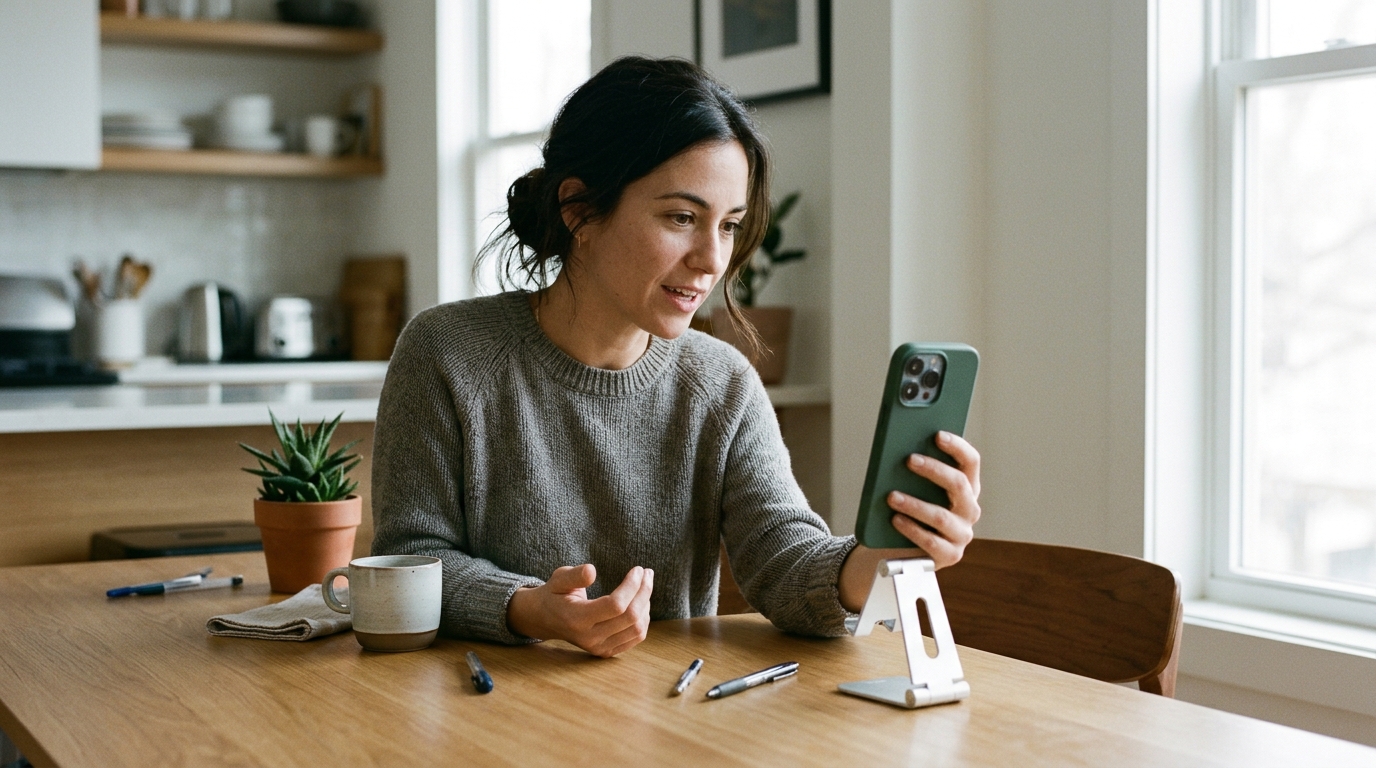
When you first use an app feature that needs your camera or microphone, your iPhone may ask for permission; tap Allow if you trust the app and want to use that feature. If an app does not appear in the Camera or Microphone list, open it and try a feature that needs the device first, such as starting a video call or recording a message, so it has an opportunity to request access.
Featured in this guide
Camera & Mic Access Red Flags – Essential Guide to Protecting Your Privacy
Enable access for a website
If you are using Safari, open the website and follow its prompts to allow camera and microphone access; you can also tap the page settings button in the address bar, open Website Settings , and adjust the Camera and Microphone permissions for that site. If a website still cannot use them, review Safari’s camera and microphone settings in the Settings app and make sure you have not denied access to the site.
Keep your permissions private
We recommend granting access only when it fits what you are doing—for example, a video meeting needs your camera and microphone, while a website you are only reading generally does not. You can return to the privacy settings at any time to turn access off, and our Camera & Mic Access Red Flags – Essential Guide to Protecting Your Privacy offers more context for recognizing permission requests that deserve a closer look.
FAQ
How to turn on camera and mic access on iPhone?
Go to Settings > Privacy & Security, then open Camera and Microphone separately and enable the switches for the app you want to use. If the app is not listed, open it and try a feature that requires access so it can request permission.
See if Camera & Mic Access Red Flags – Essential Guide to Protecting Your Privacy fits your setup








Leave a comment